Joomla - Membuat Template
Dalam bab ini, kita akan mempelajari caranya create a template di Joomla.
Membuat Template
Berikut adalah langkah-langkah sederhana untuk membuat template di Joomla -
Step 1 - Buat folder bernama MyFirstTemplate di dalam Anda Joomla → Templatesmap. DalamMyFirstTemplatefolder, buat 2 folder lagi bernama gambar dan CSS untuk menyimpan semua gambar dan file CSS.
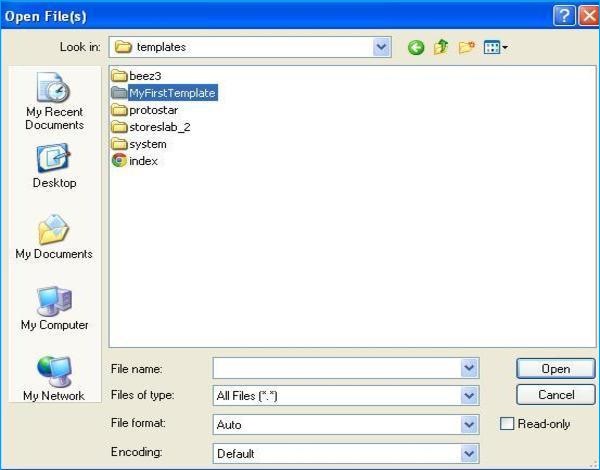
Step 2 - Di dalam MyFirstTemplate folder, buat file bernama templateDetails.xml, tanpa file ini, template tidak akan ditampilkan di Joomla.
templateDetails.xml
<?xml version = "1.0" encoding = "utf-8"?>

<extension version = "3.0" type = "template">
   <name>Tutorials Point</name>
   <creationDate>2015-06-13</creationDate>
   <author>Tutorials Point</author>
   <authorEmail>[email protected]</authorEmail>
   <authorUrl>http://www.example.com </authorUrl>
   <copyright>Jack 2015</copyright>
   <license>GNU/GPL</license>
   <version>1.0.2</version>
   <description>My First Template</description>

   <files>
      <filename>index.php</filename>
      <filename>templateDetails.xml</filename>
      <folder>images</folder>
      <folder>css</folder>
   </files>

   <positions>
      <position>breadcrumb</position>
      <position>left</position>
      <position>right</position>
      <position>top</position>
      <position>user1</position>
      <position>user2</position>
      <position>user3</position>
     <position>user4</position>
     <position>footer</position>
   </positions>

</extension>
Rincian kode
<files> - Berisi file dan folder yang tersedia di MyFirstTemplate map.
<folder> - Dibutuhkan seluruh folder yang tersedia MyFirstTemplate map.
Step 3 - Buat file bernama index.php. Ini membantu dalam menjalankan semua halaman Joomla.
index.php
<?php defined( '_JEXEC' ) or die( 'Restricted access' );?>
<!DOCTYPE html>

<html xmlns = "http://www.w3.org/1999/xhtml" xml:lang = "<?php echo $this->language; ?>" lang = "<?php echo $this->language; ?>" >

   <head>                                         //head section
      <jdoc:include type = "head" />
      <link rel = "stylesheet" href = "<?php echo $this->baseurl ?>/templates/system/css/system.css" type = "text/css" />
      <link rel = "stylesheet" href = "<?php echo $this->baseurl ?>/templates/system/css/general.css" type = "text/css" />
      <link rel = "stylesheet" href = "<?php echo $this->baseurl ?>/templates/<?php echo $this->template; ?>/css/template.css" type="text/css" />
   </head>

   <body>                                          //body section
      <jdoc:include type = "modules" name = "top" />
      <jdoc:include type = "component" />
      <jdoc:include type = "modules" name = "bottom" />
   </body>

</html>

?>
Rincian kode
<?php defined( '_JEXEC' ) or die( 'Restricted access' );?>
<!DOCTYPE html>
<html xmlns = "http://www.w3.org/1999/xhtml" xml:lang = "<?php echo $this->language; ?>" lang = "<?php echo $this->language; ?>" >
Kode ini digunakan untuk memberi tahu browser jenis halaman html mana yang digunakan dan memulai dokumen HTML dengan menjelaskan bahasa yang digunakan di situs web.
<head>                                         //head section
   <jdoc:include type = "head" />
   <link rel = "stylesheet" href = "<?php echo $this->baseurl ?>/templates/system/css/system.css" type = "text/css" />
   <link rel = "stylesheet" href = "<?php echo $this->baseurl ?>/templates/system/css/general.css" type = "text/css" />
   <link rel = "stylesheet" href = "<?php echo $this->baseurl ?>/templates/<?php echo $this->template; ?>/css/template.css" type = "text/css" />
</head>
Garis-garis ini digunakan untuk menghubungkan berbagai lembar gaya untuk templat di Joomla.
<body>                                          //body section
   <jdoc:include type = "modules" name = "top" />
   <jdoc:include type = "component" />
   <jdoc:include type = "modules" name = "bottom" />
</body>
Di sini, di bagian tubuh, jdocdigunakan untuk memasukkan keluaran di Joomla dari beberapa bagian sistem Joomla. Ituname = "top" digunakan untuk mengatur menu di atas.
Step 4 - Setelah membuat dua file ini, login ke Joomla dan klik Extension → Extension Manager dan halaman berikut akan ditampilkan.
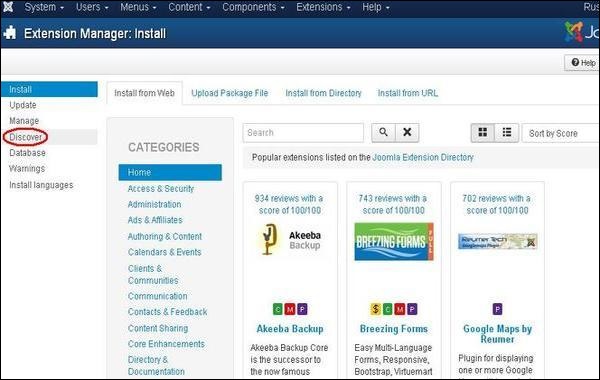
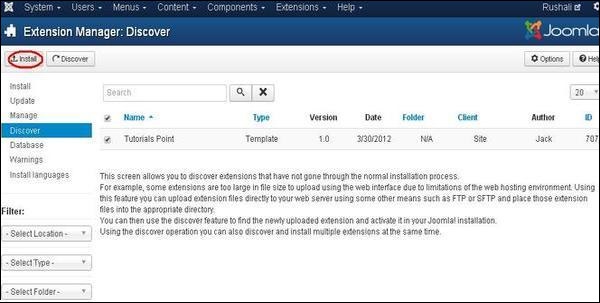
Step 5 - Di halaman di atas, klik Discover link, halaman berikut akan ditampilkan.
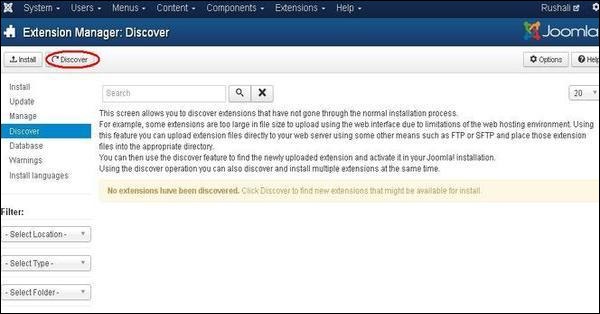
Step 6 - Selanjutnya, klik Discover tombol untuk menemukan template baru yang dibuat seperti yang ditunjukkan di bawah ini.
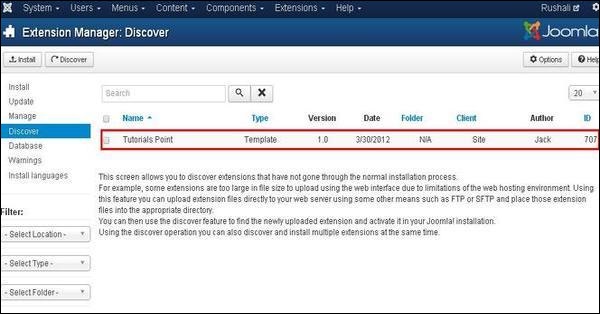
Step 7 - Klik pada kotak centang untuk memilih template dan klik Install tombol untuk menginstal template di Joomla.
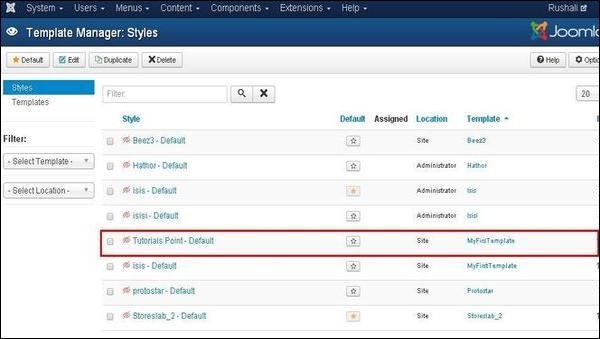
Step 8 - Setelah menginstal template, Anda dapat melihat template baru yang Anda buat dengan mengklik Extension → Template Manager. Anda akan melihat template baru yang Anda buat terdaftar seperti yang ditunjukkan di bawah ini.
Toolbar
Berikut adalah opsi toolbar di Template Manager -
Default - Pilih template default.
Edit - Pilih template untuk diedit.
Duplicate - Gandakan salinan template yang dipilih.
Delete - Hapus template untuk Joomla.